
Getting StartedLast updated: 2026-07-30
Welcome to SmartBackup docs. SmartBackup is the solution for organizations who want to use the Industry’s leading platform for securing their Smartsheet data. SmartBackup is a comprehensive solution for company-wide deployments, addressing business needs such as data backup and export, business continuity, audit trails, disaster recovery, data migration, and other key scenarios. It is available in a tiered pricing model, based on the number of Smartsheet Members in the organization.
SmartBackup is the most sophisticated, capable, and comprehensive backup solution for Smartsheet customers available in the industry.
The purpose of SmartBackup is to create incremental backup copies of a customer’s Smartsheet data (Sheets), and optionally Dashboards and Reports – automatically, for all users in the customer’s Smartsheet account, and to save those copies in Smartsheet itself (online backups) and/or to save copies outside of Smartsheet (offline backups).
Note that SmartBackup is not designed to make daily backup copies of ALL the customer’s data in Smartsheet. In general, for SaaS solutions like Smartsheet – trying to make a copy of ALL the data becomes less and less viable as the amount of data grows over time. Backing up SaaS based data requires a modern approach, as older approaches no longer work effectively. Read our article titled "Modern Backup Strategies for SaaS Platforms" for more details here: https://qrl.be/UVCB
Our recommended approach is to adopt a modern, thoughtful backup process which includes a combination of tools and techniques. In this documentation, we will describe how to install, configure, run, and manage SmartBackup to secure your organization’s Smartsheet data.
Getting started
Getting started with SmartBackup is very simple and can be achieved in three easy steps.
- Purchase a SmartBackup license, then download and install the latest version of SmartBackup, which can be found here.
- Next, you will need to generate a Smartsheet sysAdmin Token which will then be entered into SmartBackup via the console and will be used to maintain a list of all Smartsheet Users automatically.
- Use LiveCopy to run your first Online Backup and ShadowCopy to run your first Offline Backup.
Then further customize scheduling and other options.
Watch Demo
When working with a backup application like SmartBackup, it's important to be comfortable with the Console interface and to know how to perform basic tasks. Watch the video below to learn how to navigate the SmartBackup Console interface and complete your first backups.
Why Backup?
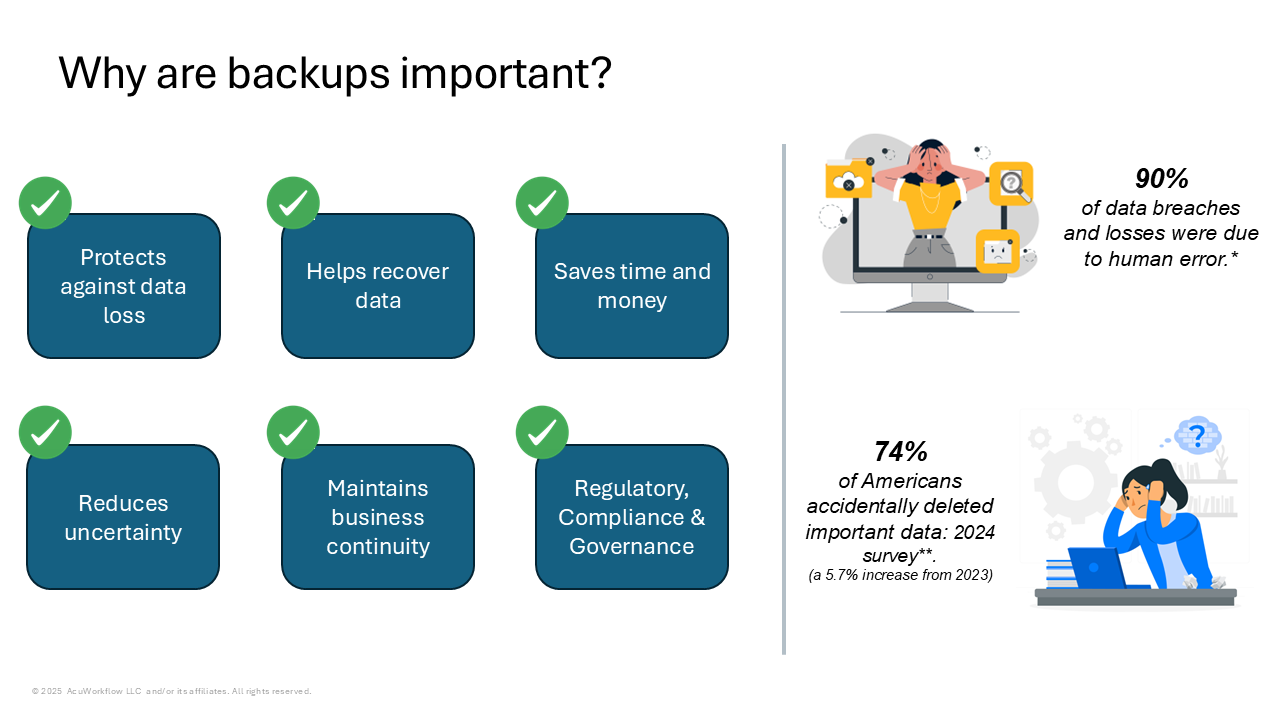
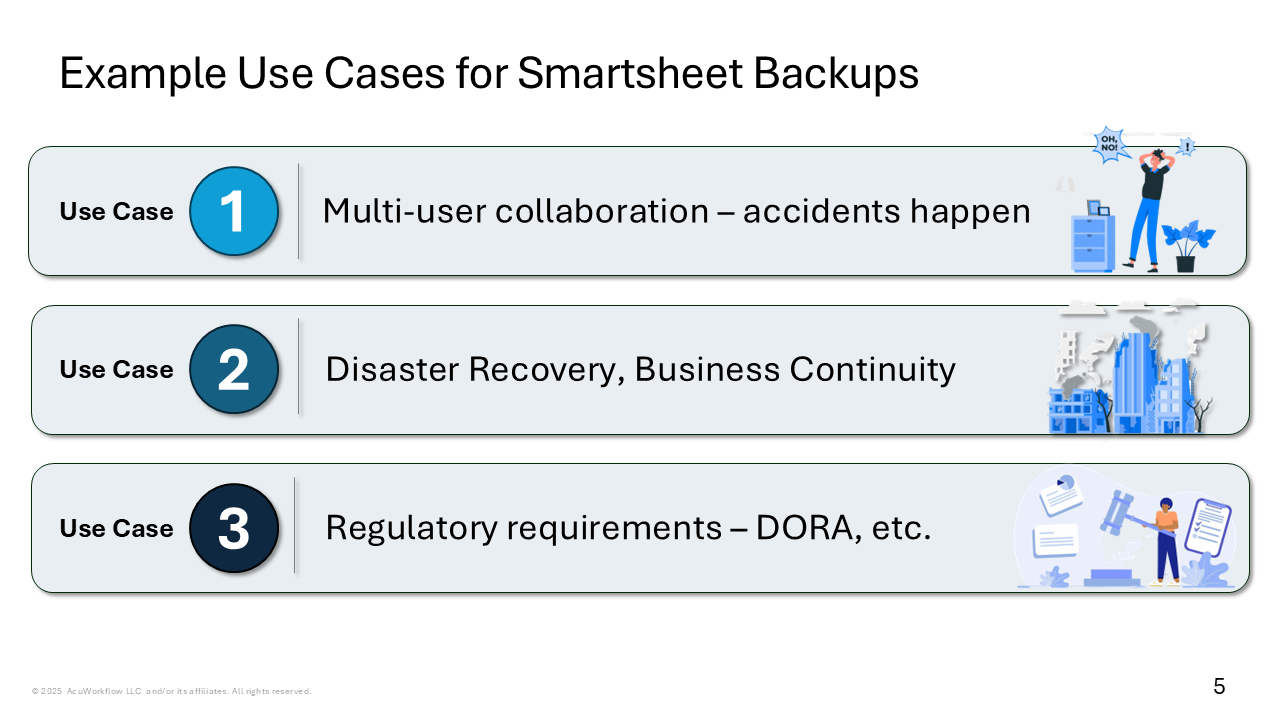
- More Smartsheet users means more people are sharing. People are not infallible. They make mistakes, and actually, they make them quite often. There’s no reason to fear this if you take frequent incremental backups.
- The IRS and regulatory commissions really don’t care that you had a data disaster. All it means to them is that you’re not compliant and they can fine you. Ensuring that you’ve got an offsite backup of critical Smartsheet information can really save you if something goes wrong.
- You are responsible for your Smartsheet data. In the event of a minor or even major mishap, having a backup means your operations can recover quickly.
- As a Smartsheet Power user, you most likely know that Smartsheet provides a convenient backup capability, but the challenge comes when you want to recover from those backup copies and you realize that features like automations, column settings, forms, cell formats, links etc. cannot be recovered because the copy you have is limited and outside the Smartsheet environment. With SmartBackup, it's easy-peasy.
Biggest Threats?
| User Deletion | A collaborator may accidentally delete a shared attachment, or you may delete some rows and then later learn that the data is still required. |
|---|---|
| Data Overwrites | Smartsheet sheets typically contain large amounts of data that are constantly updated by multiple users. When large data sets are imported, accidental overwriting may become quite common. |
| Data Corruption | Due to various scenarios, your data can get corrupted and become inaccessible, and you would be stuck without a robust backup solution in place. |
| Data migration issues caused by incorrectly mapped fields | If incorrectly mapped fields are imported, the correct data may be overwritten in your sheets. |
| Third-party applications errors | Third-party applications can modify data in ways you didn’t intend. With Smartsheet's wider adoption and inter-operation in the Enterprise, this becomes a major threat. |
| Data Loss | Data can be lost due to reasons other than malicious intent. Under new data protection rules, data destruction and corruption of personal data are considered forms of data breaches and would require appropriate notifications. |
Learning SmartBackup
People come to SmartBackup from different backgrounds and with different learning styles. Whether you prefer a more theoretical or a practical approach, we hope you’ll find this section helpful.
- Get yourself orientated by watching the intro video: Watch Now.
- Familiarize yourself by watching the how-to-use-it video: Watch Now.
- Sign-up for a free, no obligation 30-day trial of the full Enterprise Edition: Request Now.
- Start exploring by reading the various Guides, especially the Reference Guide.
Then further customize scheduling and other options.
Release Notes – R12 - July 2026
This release introduces the updates required to support Smartsheet’s new licensing model and the transition from Licensed Users to Members. It also delivers several new enhancements and a handful of targeted bug fixes, all aimed at expanding SmartBackup’s capabilities while improving overall performance and stability.
Fixes and Enhancements:
1. GOV Region Installations:
- Because the Smartsheet GOV region lags behind the other regions in terms of capabilities and API calls, we had to add code to SmartBackup to determine which API set to use, and which capabilities to support.
- LiveCopy, Refreshmembers and the Console app have all been rewritten to accomodate the older APIs when the region is set to GOV, and to use the latest APIs if the region is set to any of the other regions.
- This means that all key SmartBackup functions are supported when running in the GOV region, including LiveCopy and ShadowCopy. It is no longer necessary to run the older Backup and Export functions for GOV installations.
- The GOV region has now been added to the Region dropdown selection in the SmartBackup Console, which means that it is no longer necessary to manually edit the config.yml file to set the smartsheetgov.base setting.
2. ShadowCopy:
- When exporting attachments, ShadowCopy creates a metadata file called !~!ATTMTIndex. This file contains information about the attachments that were included in the export. For this release, the parentID for each attachment has been added to the index, to allow for restoring attachments to the corresponding rows in the sheets.
- In some cases, when running ShadowCopy, a message occurred in the console log which said: no such table. This message hos been removed.
3. JobCentral ExitCodes:
This release delivers a major enhancement to the JobCentral function. Previously, JobCentral could only report whether a RunBook job completed successfully or encountered an irregular condition. In practice, many of these irregular conditions were only warnings that didn’t require attention. For example, if SmartBackup experienced a timeout but succeeded after a retry, JobCentral would still send a notification that suggested an error occurred.
With the introduction of Exit Codes, JobCentral can now distinguish between true errors and benign warnings, enabling far more meaningful and accurate notifications for SmartBackup Admins through JobCentral automations and dashboards.
Details for these new ExitCodes are listed in the following table:
| Severity | ExitCode | Job Status | Indicates | API Return Codes | Comments |
|---|---|---|---|---|---|
| decimal 0, binary 0000 | Success, no errors encountered. | Success | 200 | All good, no action required. | |
| decimal 1, binary 0001 | Indicates failure or malfunction. | Failure | Unrelated to API calls. | May be caused by conditions or events external to SmartBackup. | |
| decimal 2, binary 0010 | Partial Success, error encountered. | Warning | Not equal to 200 | May require inspection if occurring frequently. | |
| decimal 4, binary 0100 | Partial Success, error encountered. | Serious | >= 500 | May require intervention if occurring frequently. | |
| decimal 8 binary 1000 | Unsuccessful, critical error encountered. | Critical | Other events and conditions besides API errors. | Attention and intervention required. |
Note that in order to integrate these new Exit Codes into the Job Central process, it will be necessary to download a copy of the Latest RunBooks, and then customize those RunBooks to your organization's requirements, and then to update the Job Central Reports and the Dashboard to include the new Exit Codes. Refer to the JobCentral section for details on how to setup the new codes.
Note also, that it is possible for a RunBook job to result in one or more additional ExitCode values. This occurs when the job encounters a combination of different ExitCodes in a single run. For example, if the resulting ExitCode=6, this means that the job encountered an ExitCode of 2, and then also an ExitCode of 4 in the same run. In these cases, it is necessary to take action based on the highest value ExitCode, which in this case would be ExitCode=4.
4. Smartsheet Member mode:
In order to address another issue that was encountered due to changes in the Smartsheet licensing model, it was necessary to rewrite SmartBackup functions which relied on certain Smartsheet API calls to determine if a Smartsheet User was a licensed user or not, as SmartBackup only includes users that have the ability to create and own assets in Smartsheet. With the introduction of the new Smartsheet licensing model, Smartsheet decided to move to a new API setting called seatType.
However, it appears that Smartsheet does not deploy these types of changes to all customers at the same time, so it required us to develop and rewrite the SmartBackup functions to cater for both scenarios. In other words, if a customer has not yet been migrated to the new licensing model, then use the old API calls, but if a customer has been migrated to the new licensing model, then use the new API calls.
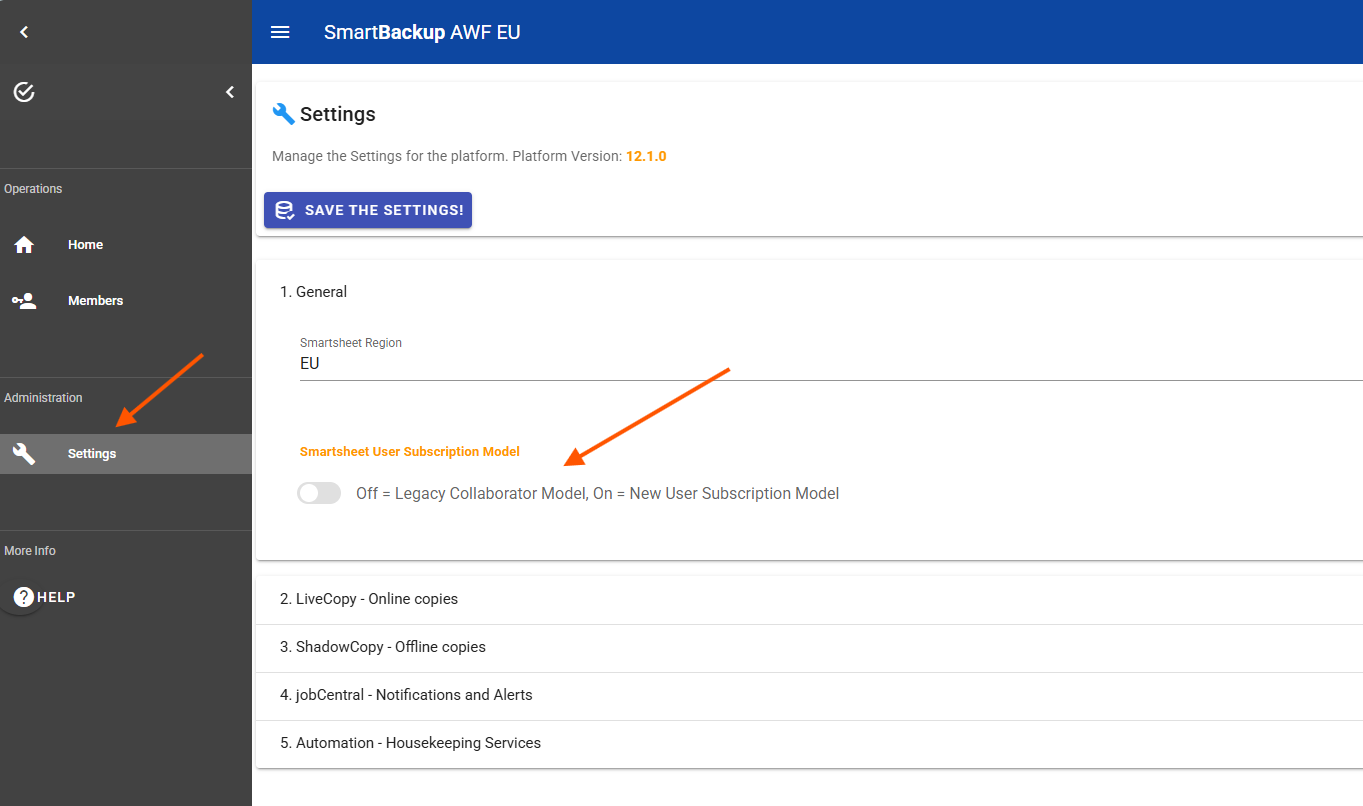
To accomplish this, we have introduced a new switch in the SmartBackup Settings, General section called Smartsheet User Subscription Model.
- OFF = means that we will use the old model, and all Licensed Users will be included in Smartbackup processing.
- ON = means that we will use the new subscription model and will use the
seatTypeparameter to select only those users marked as Members for SmartBackup processing.
More details about each of these functions is available in subsequent sections of this documentation site.
Release Notes – R11 - March 2026
Due to unforeseen changes to the Smartsheet API which caused many existing functions to fail, it has been necessary for us to re-write SmartBackup in a short amount of time.
However, at the same time, we decided to take the re-write as an opportunity to improve overall stability and consistency, and overall performance of the solution, by applying multi-threading and other advanced techniques and to integrate some of our latest approaches on how to backup SaaS solutions like Smartsheet, and this major new release includes several new functions and capabilities - all offered at the same pricing structure - which equates to increasing the value of the solution tremendously while maintaining the overall costs.
New Functions and Capabilities:
- LiveCopy - the new, super-fast and greatly enhanced "online backup" function, replacing the old "Backup" function. By applying processor multi-threading techniques, we have been able to achieve speed increases of 15x that of the previous functions. LiveCopy now also has the old "Archive" vault management capability built in. This means that you no longer have to setup a separate job schedule to perform the archive clean-up process - now it runs automatically with no Admin or user intervention required, and you as the Admin, can decide how many month's worth of online backup copies to retain in the vaults.
- ShadowCopy – the new, fast, reliable replacement for the earlier "Export" function. ShadowCopy also benefits from the new processor multi-threading technique with greatly improved performance and overall speeds. Another enhancement in ShadowCopy is that the files are now saved in a flat file structure and arranged by date and time. As before, ShadowCopy can save either Sheets, or Attachments, or both, and the new file naming convention makes it really easy to find the offline copies of Sheets and their associated Attachments. Additionally, ShadowCopy now also creates offline copies of Reports.
- DRP Report – the new reporting function which provides automatic and scheduled exports of key Smartsheet organizational data in support of disaster recovery planning (DRP) and general data recovery. Currently the reports include a list of all Groups, and a list of all Members at the time each DRP Report process runs.
- Housekeeping Services – the new internal scheduling engine which allows for SmartBackup Admins to automatically run functions such as LiveCopy, ShadowCopy, Refreshmembers, and DRP Reporting automatically on pre-defined schedules.
- JobCentral - the centralized monitoring and management hub, purpose-built for SmartBackup environments. Once configured, JobCentral becomes your single source of truth for all SmartBackup activities, seamlessly integrated into your selected Smartsheet workspace. It includes automation rules that trigger alerts and notifications, dynamic dashboards and reports delivering real-time insights, helper sheets to track key metrics like SmartBackup Heartbeat status, and all SmartBackup job information is captured as attachments in Smartsheet for deep visibility into your deployment.
- Multi-Node/Single Host – SmartBackup now also includes the ability for a SmartBackup Admin to install, configure and run multiple instances of SmartBackup on the same computer/Windows Instance. The key to enabling this capability is a new configuration file called "config platform". All that is required is to customize one or two parameters in the new configuration file for each new SmartBackup instance.
More details about each of these functions is available in subsequent sections of this documentation space.